View Account
When you create an account, you are taken to the Account screen, where you can modify the account on the Details tab or view, filter and search the account’s transactions on the Transactions tab.
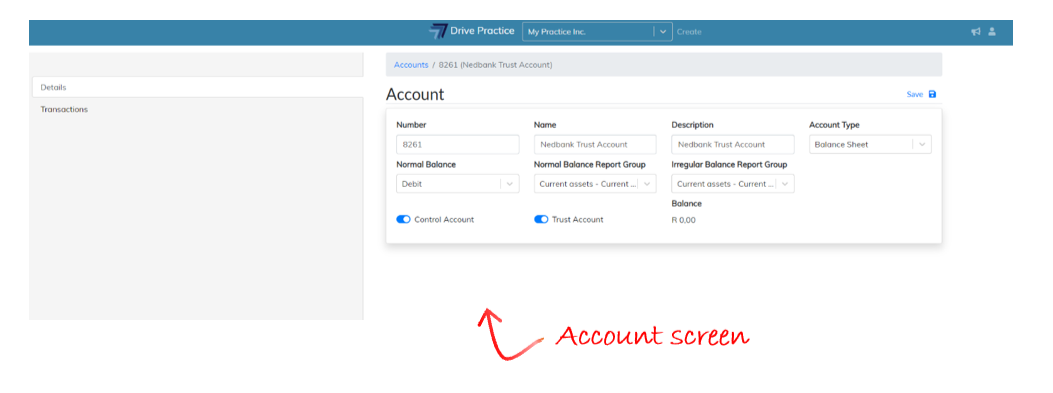
You can also navigate to an account by searching for the account on the Accounts list screen and clicking on the hyperlink on the account number.

Account Details
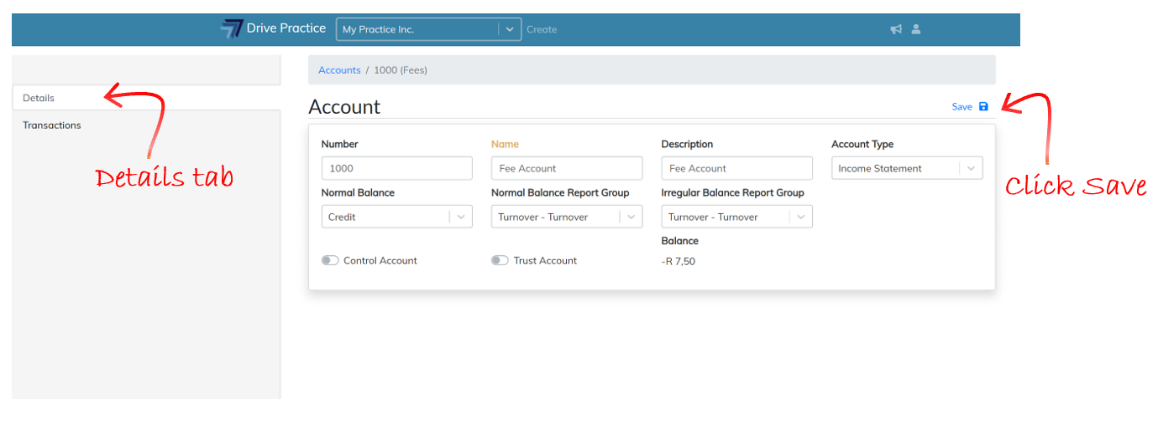
On the Details tab of the Account screen you can edit any of the fields. The field labels of the fields that have been edited turn yellow, indicating that the changes have not been saved.
To save the changes, click on the Gear icon at the top right of the account detail card, and select Save. After saving you will receive a notification indicating whether the changes were Saved or whether there was an Error. If the Error is due to there being an issue with the changes made (for example, if the account number was changed to an account number that already exists), correct the edited data and click Save again.
Account Transactions
To return all transactions for the account click on the Search button on the top right of the Transactions criteria card.
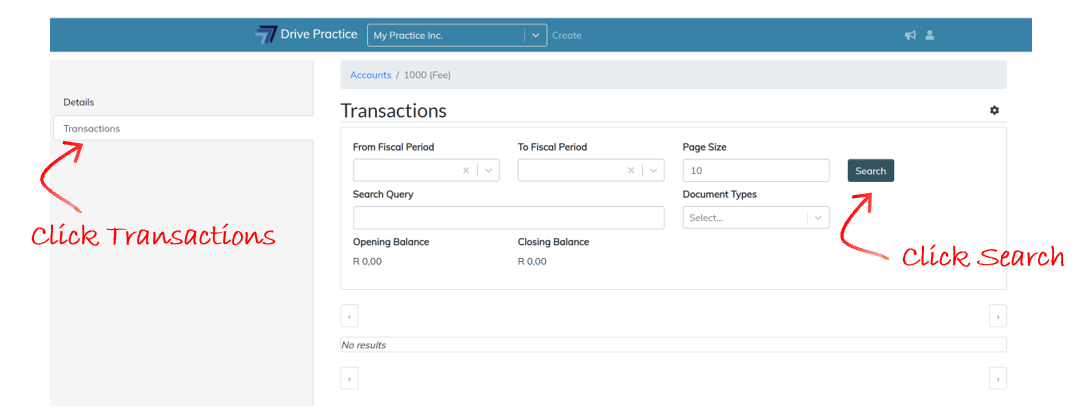
The account transactions tab also provides for selecting to list on the screen transactions for a From Fiscal Period and To Fiscal Period and/or to further filter these transactions by Transaction Type, and to search for transactions by a Transaction Date, G/L Batch number and transaction amount.
Once a search has been executed, the Opening Balance and Closing Balance fields are populated.
The opening balance calculation is dependent on the selection criteria and on the type of account.
An Income Statement account, where the From and To fiscal periods are selected will show the opening balance of the account as at the from fiscal period, which will calculate as the total of the transactions as at the end of the prior period, except if the from period is the first fiscal period in the year, in which case the opening balance will be nil.
A Balance Sheet account will always show the opening balance as the net of all the transactions posted to the account as at the day before the date of the From Fiscal Period, or the day before the current date where no From Fiscal Period has been applied.
The closing balance calculation is the sum of the transactions listed on the screen added to the Opening Balance reported.
The fields that can be used for searching and filtering transactions are explained below.
-
From Fiscal Period
The first fiscal period from which the results should be returned. To clear the fiscal period selected, click on the “X” next to the period.
-
To Fiscal Period
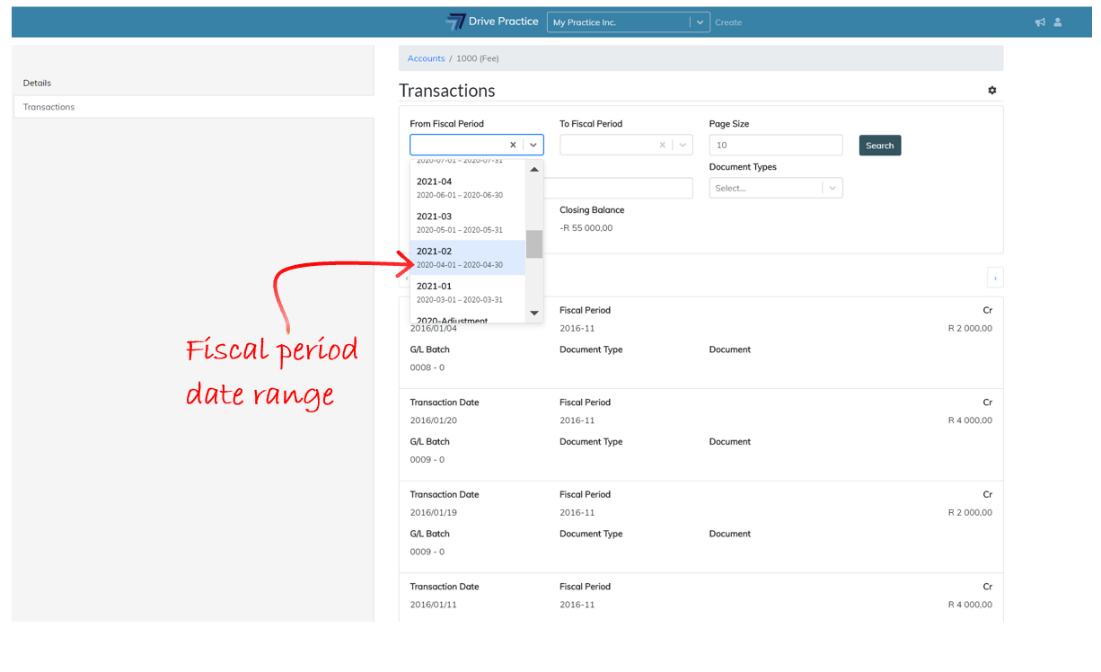
The last fiscal period of the transactions to be selected for return. The To Fiscal Period can also be left blank which will then return all the transactions from the From Fiscal Period up until the current date. Note that the From and To Fiscal Periods can span across financial years, and that if they do it will impact the opening balance amount that is returned. The difference between the Opening Balance and the Closing Balance is the movement for the periods selected.
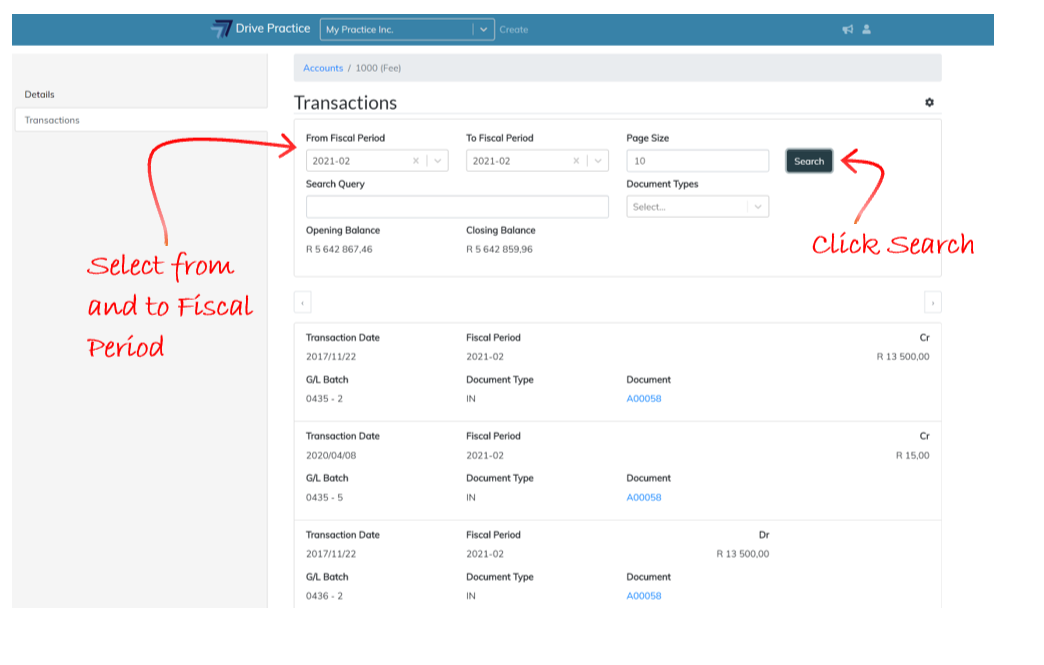
The fiscal period date range will reflect in the drop-down list for easy selection of the From and To fiscal period.
-
Page Size
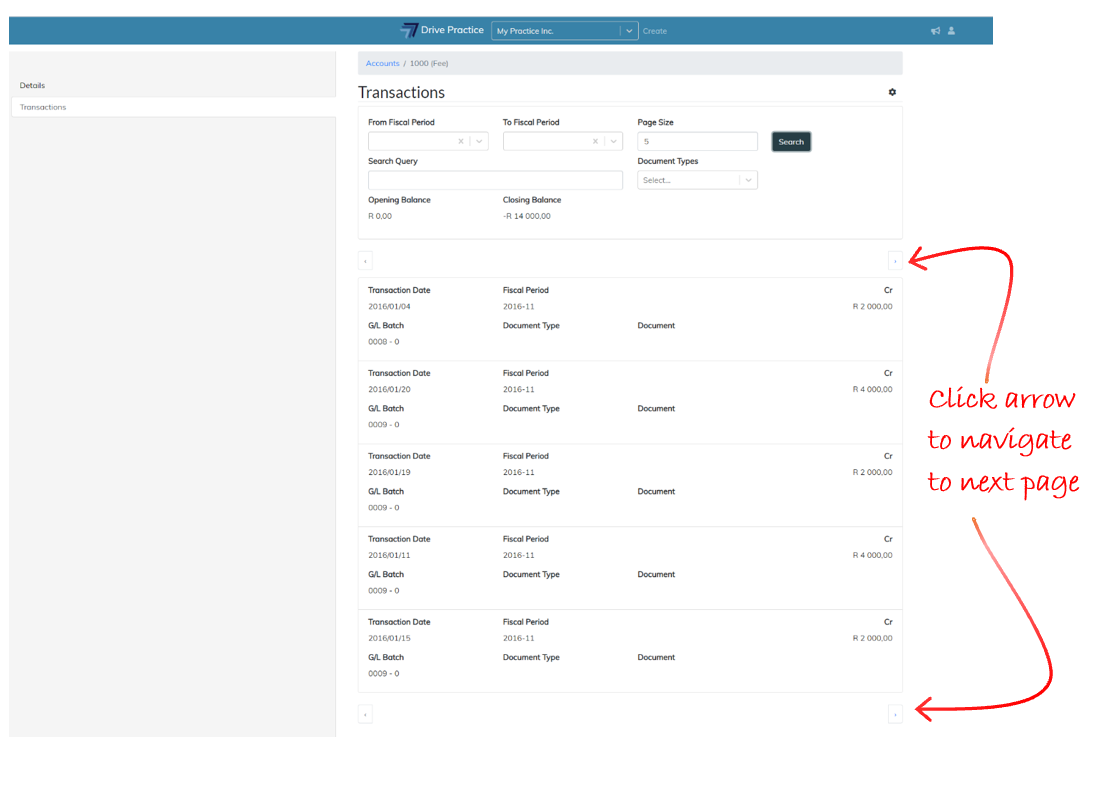
The default page size is 10 transaction cards and can be changed to a larger number if required and impacts the closing balance, which is the sum of transactions displayed on the screen added to the opening balance.
Returning more transaction cards per page can reduce the number of pages of results returned for the selected criteria but will require scrolling down on the screen to view the results on the page. To move to the next or previous page, use the right or left arrow buttons at the top or bottom of each page.
-
Search Query
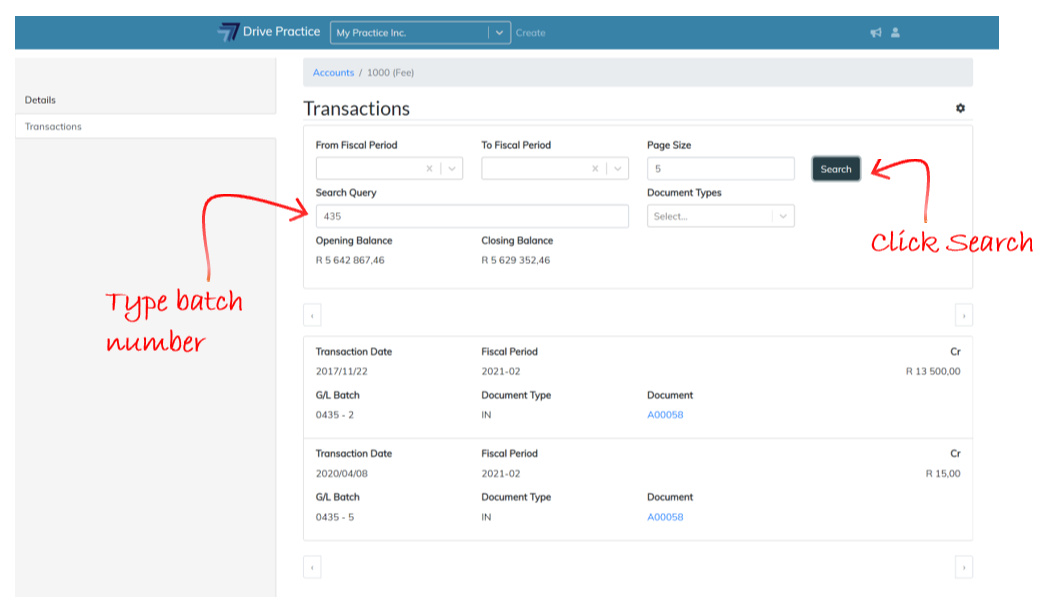
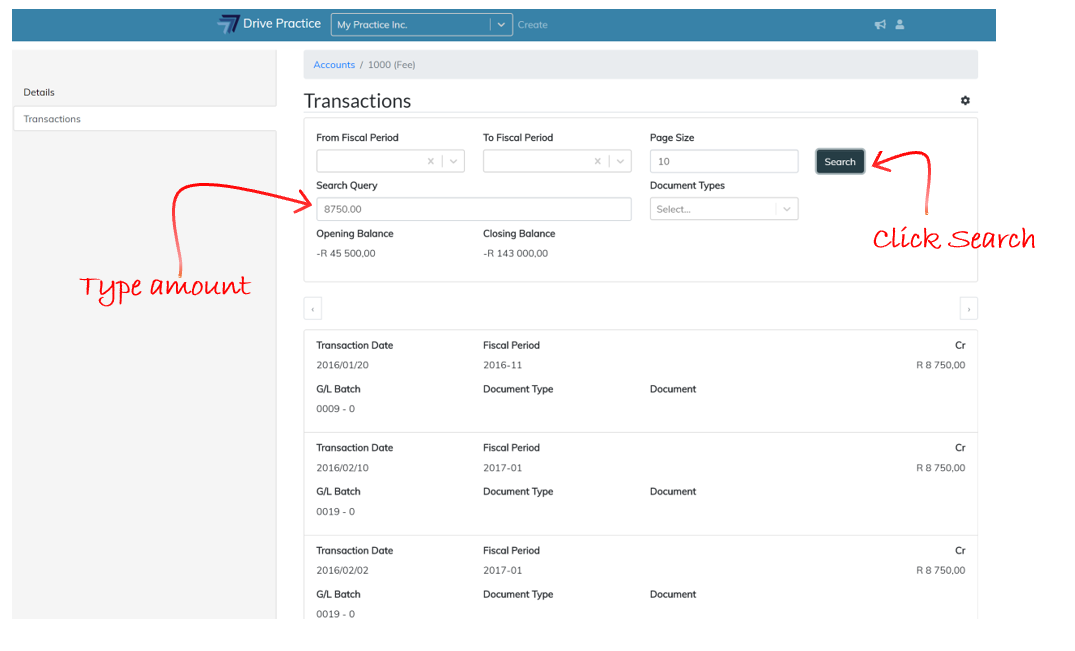
This field is used to search on transactions by G/L Batch number, Transaction Date, or Amount.
To search on the G/L Batch number, type in the G/L Batch number without its entry number.
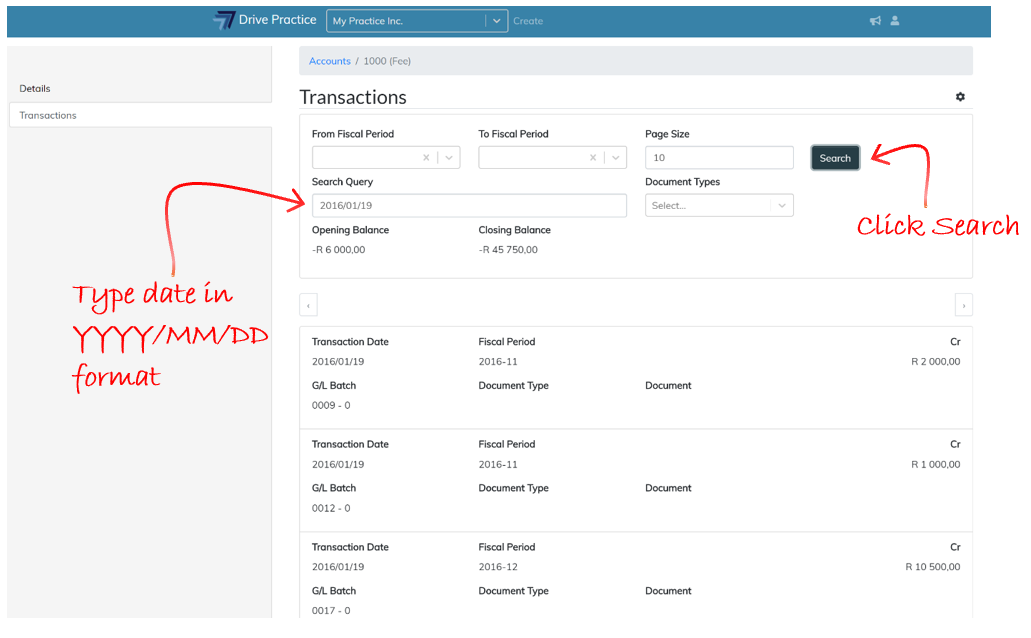
To search on Transaction Date, enter the date to be searched for in YYYY/MM/DD format.
To search an amount, such as R 8 750.00 as in the screenshot example below, type in 8750.00 in the search bar.
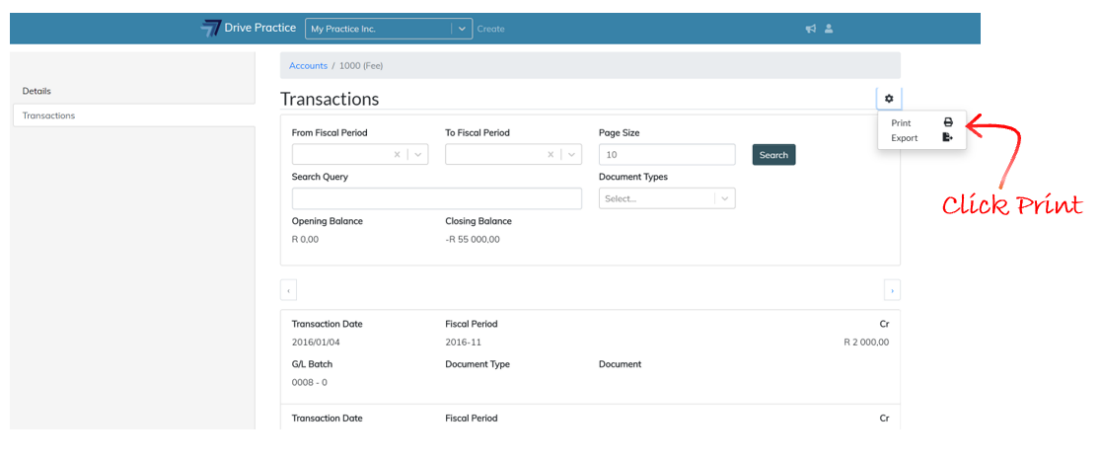
Results from search criteria can be printed or exported by clicking on the Gear icon on the top right of the Transaction search criteria card.
To print the transactions returned, click on the Gear icon and select the Print option. The report uses the G/L Detailed Ledger report format and will download and excel report.
To export the transactions returned, click on the Gear icon and select the Export option. Select to export either in CSV or Excel format and click Export.