Edit Recurring Activity
To edit a Recurring Activity, navigate to the Recurring Activity list screen as described in the Recurring Activities List Screen section above.
Find the entry to be edited using the filter, sort and/or search fields. Once the entry to be edited is located, click on the Name of the Recurring Activity on the Recurring Activity list entry card to open the Recurring Activity.
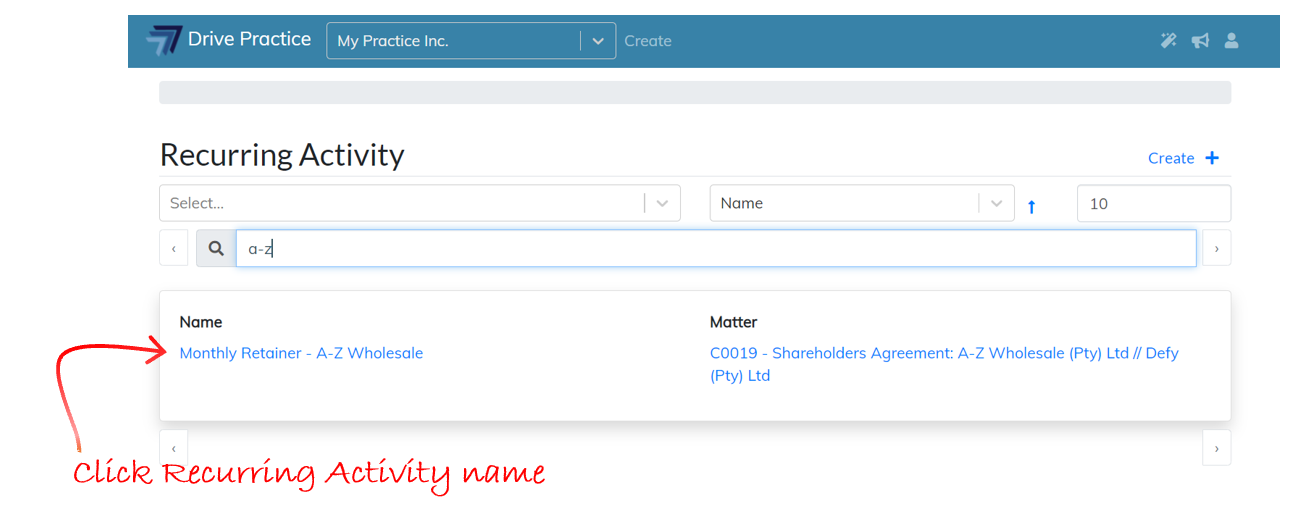
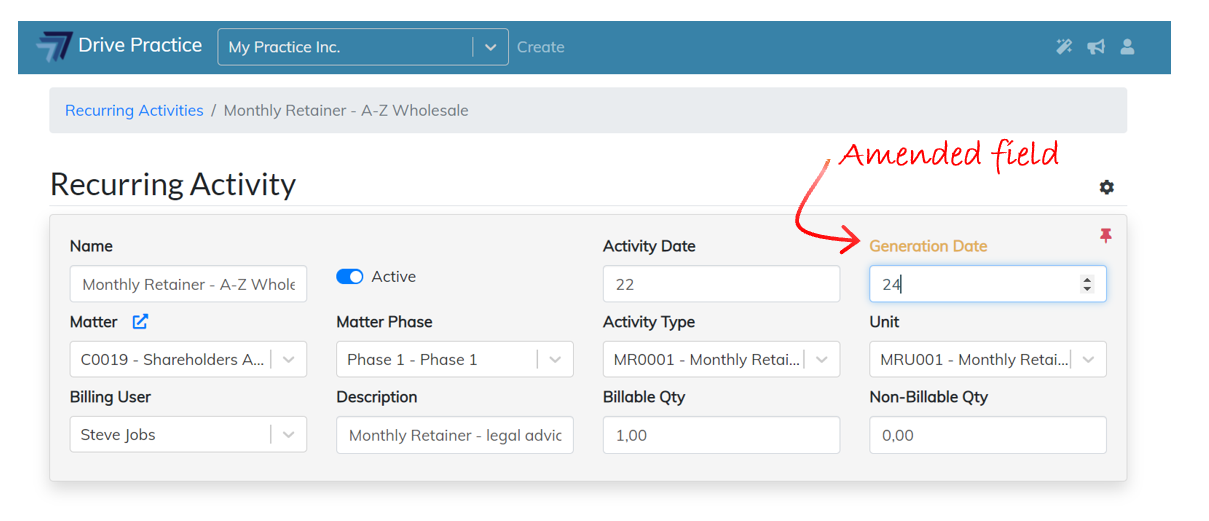
As the field/fields are amended, the field names turn yellow to indicate that the changes have not yet been saved.
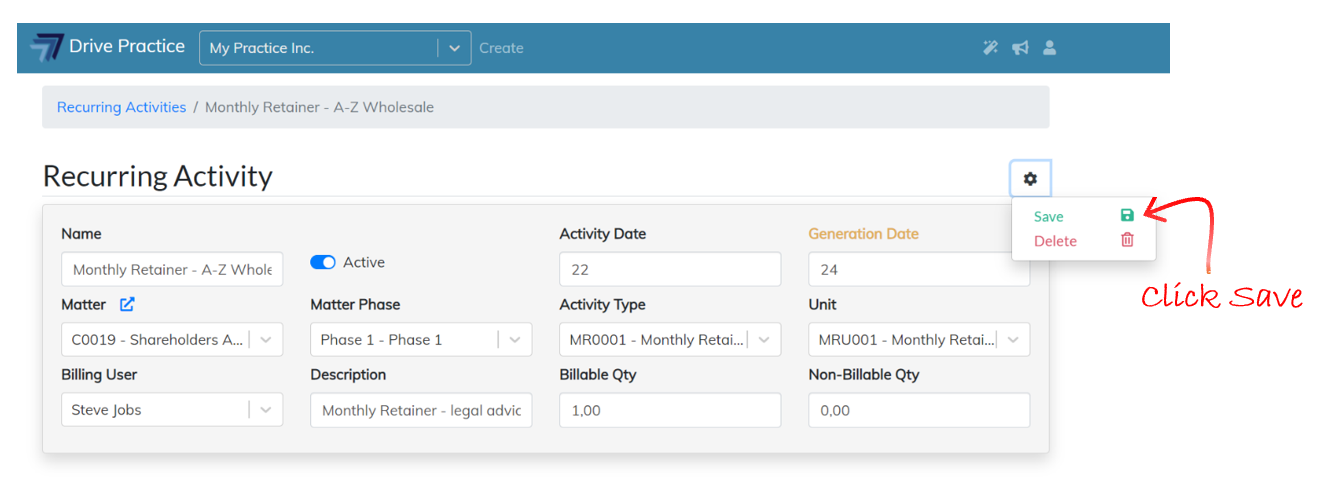
To save the changes, click on the Gear icon on the top right-hand side of the Recurring Activity entry card and click on Save, or use the Ctrl-Enter shortcut key to save the amendments. The field names will turn black once the save has successfully executed, and a notification that the record has been saved will appear briefly at the top right-hand side of the screen.
Editing a Recurring Activity will not change any activities generated prior to the amendments, and the changes will only be effective going forward on new unbilled activities that will be generated according to the parameters provided on the Recurring Activity.
Activate/Deactivate Recurring Activity
When a new Recurring Activity is created, it is Active by default, and the Active toggle button is added to the Recurring Activity once it has been created.
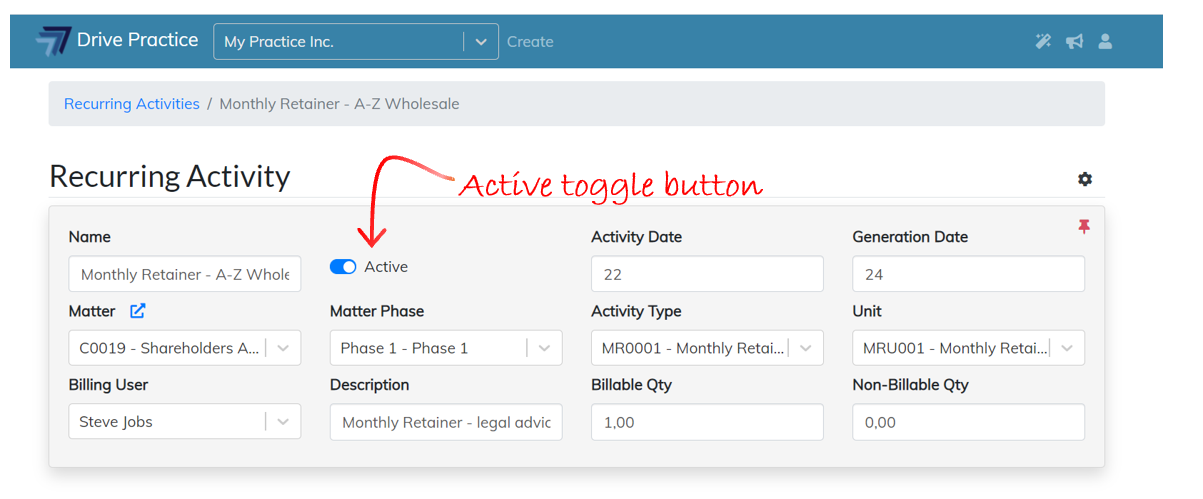
When a Recurring Activity should no longer generated unbilled activities, say for example when a retainer agreement is concluded, it can be deactivated by clicking on the left-hand side of the Active toggle switch. Remember to save the change in status by clicking on the Gear icon on the right-hand side of the Recurring Activity entry card and selecting Save or use the Ctrl-Enter shortcut key to save the status change.
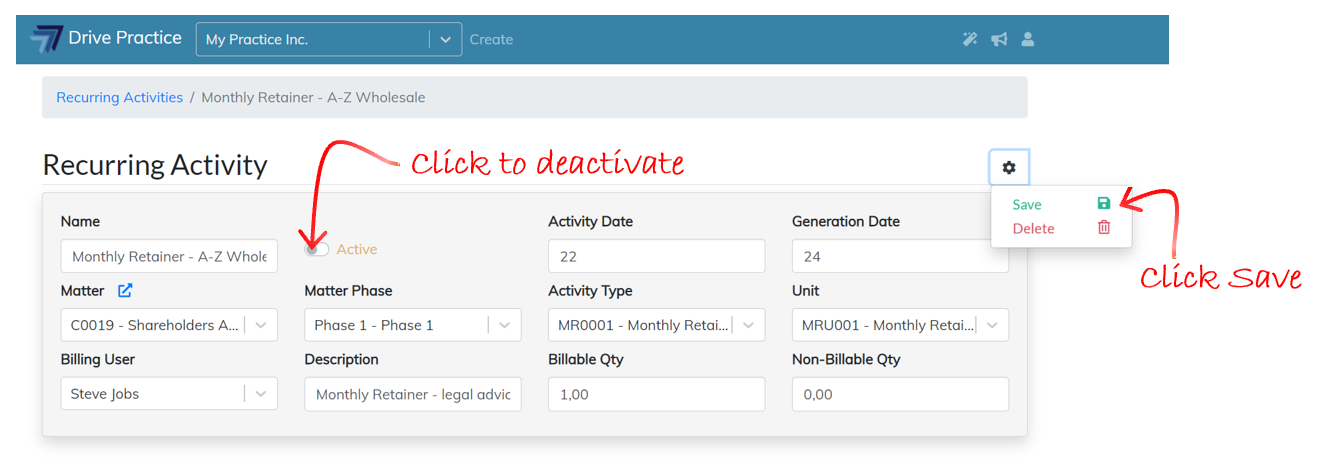
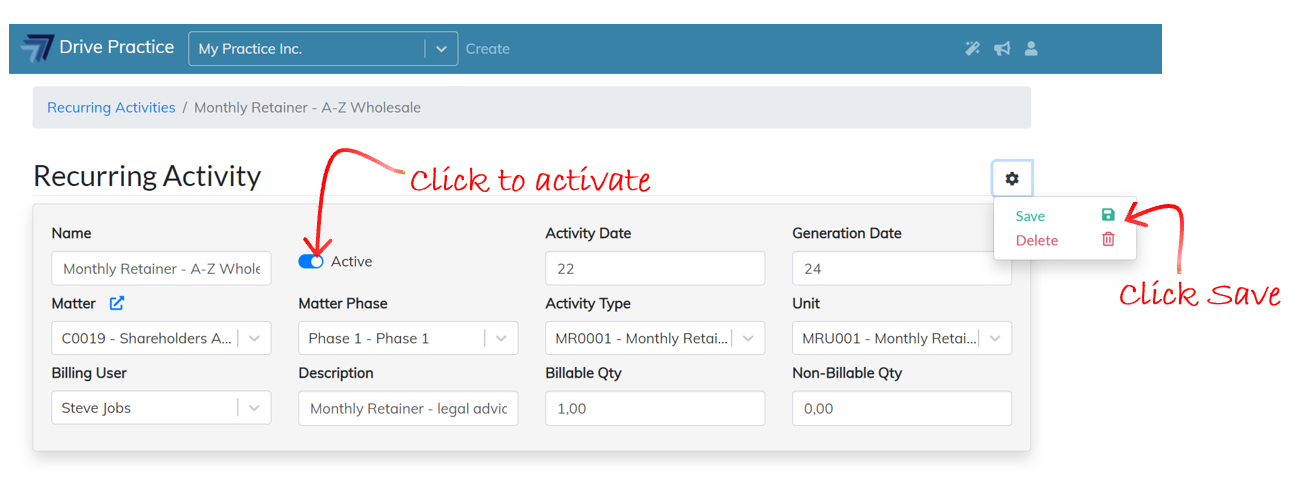
This action deactivates the Recurring Activity, and it is marked as Inactive. Inactive Recurring Activities can be edited at any time and activated again by clicking on the right-hand side of the Active toggle switch to mark it Active once again. Remember to save the change in status by clicking on the Gear icon on the right-hand side of the Recurring Activity entry card and selecting Save or use the Ctrl-Enter shortcut key to save the status change.
Delete Recurring Activity
If a Recurring Activity is no longer required, it can be deleted by clicking on the Gear icon on the right-hand side of the Recurring Activity entry card and selecting Delete.
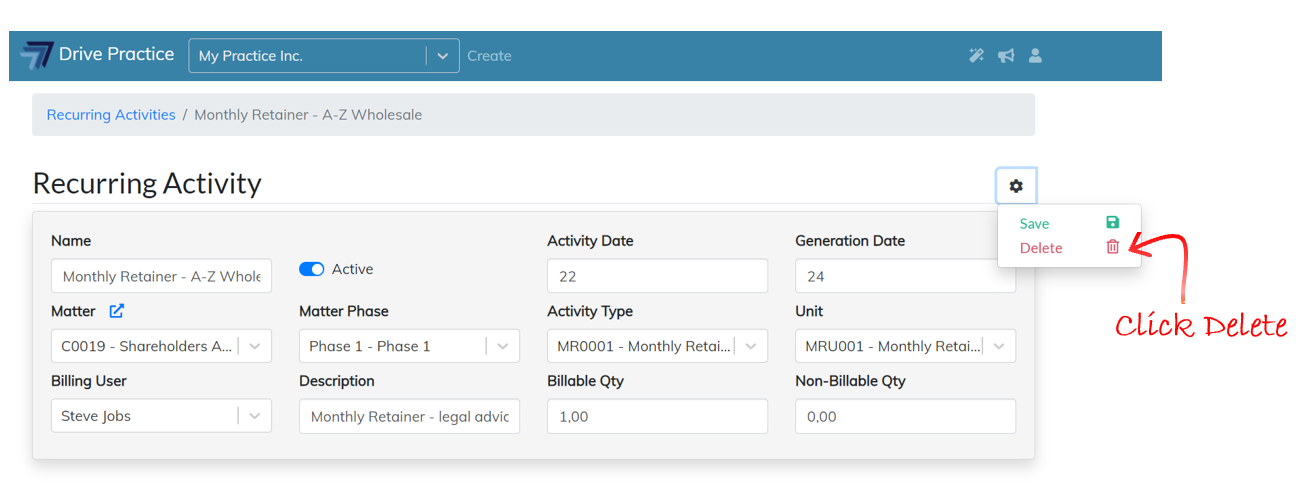
This will delete the Recurring Activity and it will no longer be available in the Recurring Activities list screen. All the unbilled activities created by the Recurring Activity while it was active will remain, and those that it created that were billed will remain on the client invoices on which they were billed.