Create Billing Run
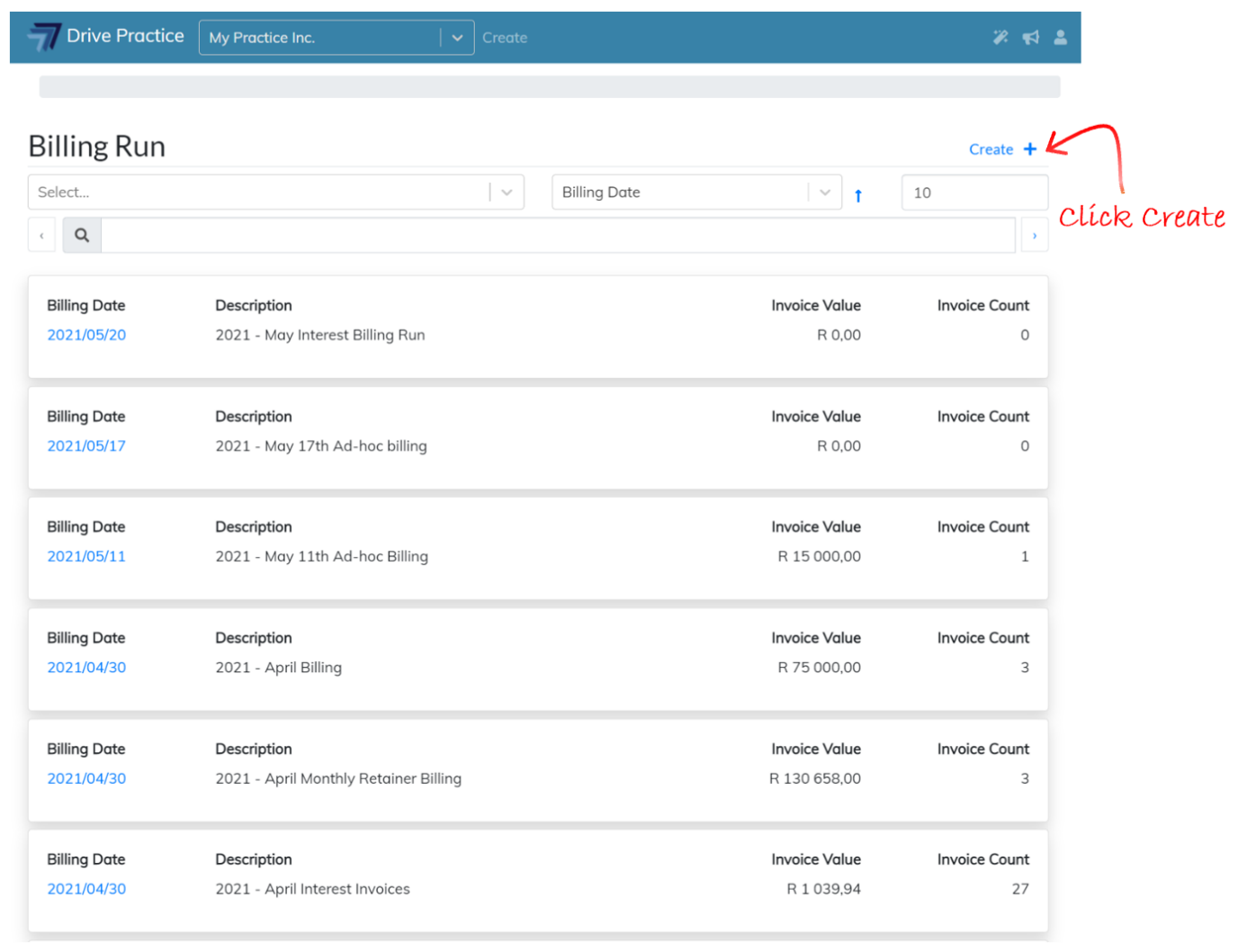
To create a billing run, navigate to the Billing Run list screen as described in the Billing Runs List Screen section above and click on the Create button.
The Billing Run header fields are described below.
-
Billing Date
The date will default to today and can be set to whatever the desired date is for the invoices in the billing run. Either manually change the date or select the date by clicking on the date picker icon.
-
Description
Enter a description for the billing run. The description should meaningfully describe what type and content the billing run contains, for example “2021 May All Professionals”, making it easier to search for and find specific billing runs.
-
Billing Run Type
Select the billing run type by clicking on the field and use the up and down arrow keys to highlight the required entry and press enter or click on the desired entry to be selected. Billing run types are described in the Purpose section of this document.
-
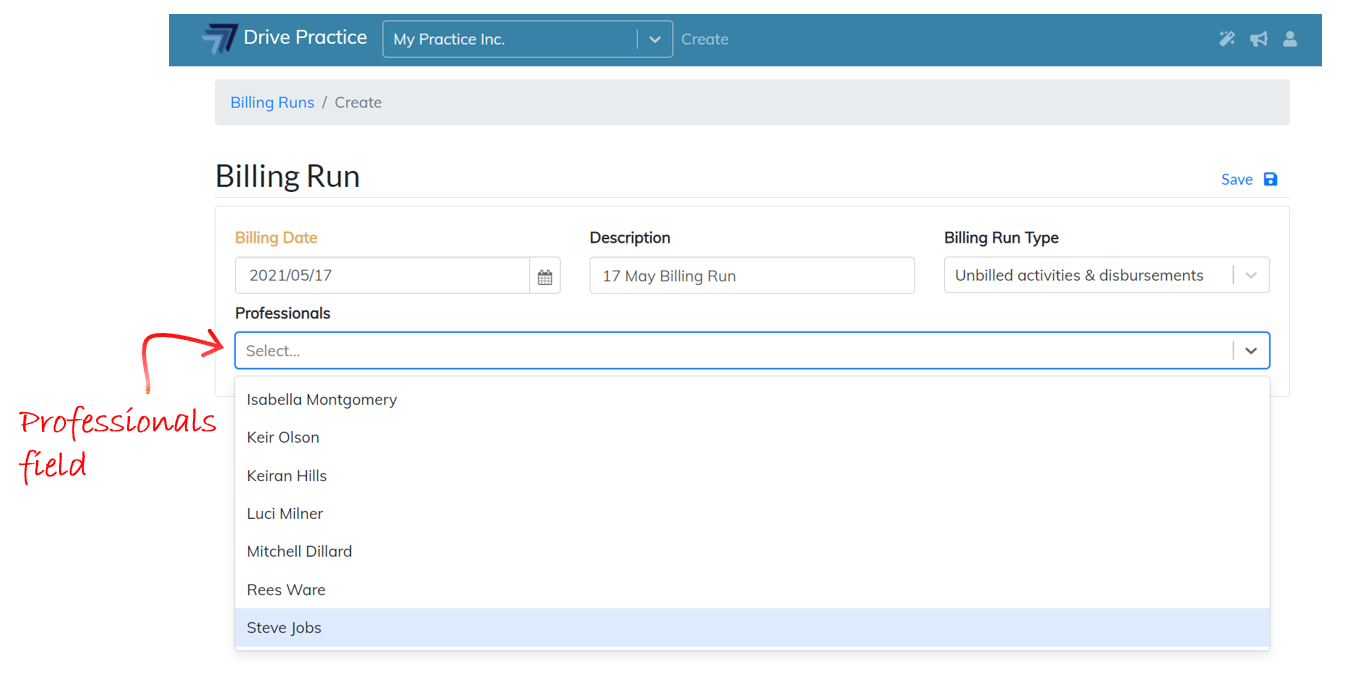
Professionals
Invoices generated in using the unbilled activities and disbursements type billing run and the interest on overdue invoices type billing run can be generated for specific professional(s). If either of these two types of billing runs are selected, the Professionals field is displayed to select one or more professionals. By selecting professionals, the billing run, when created, will only generate invoices in the billing run for matters where the selected professional is the Responsible Professional on the matters. Leaving the Professionals field blank will generate a billing run for all matters.
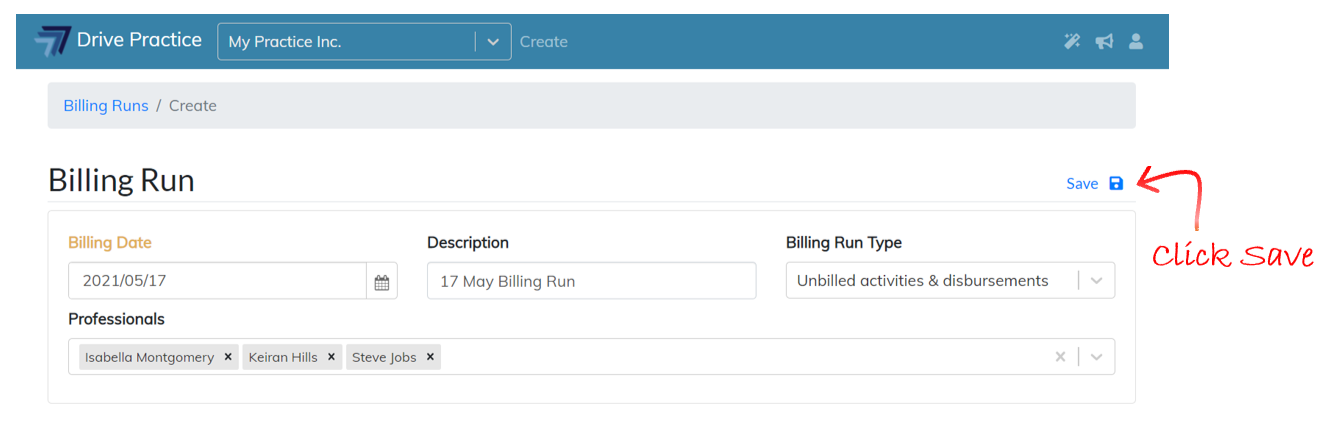
When the header fields have been set, click on the Save button to save the header and create the billing run or use the Ctrl-Enter shortcut key to save the header and create the billing run.
If the user does not have the Create Billing Run or Manage Client Invoices rights assigned either directly on their personal user profile or inherited from a group user profile, an error message indicating that the user does not have rights to perform the function will be displayed and the billing run will not be generated.
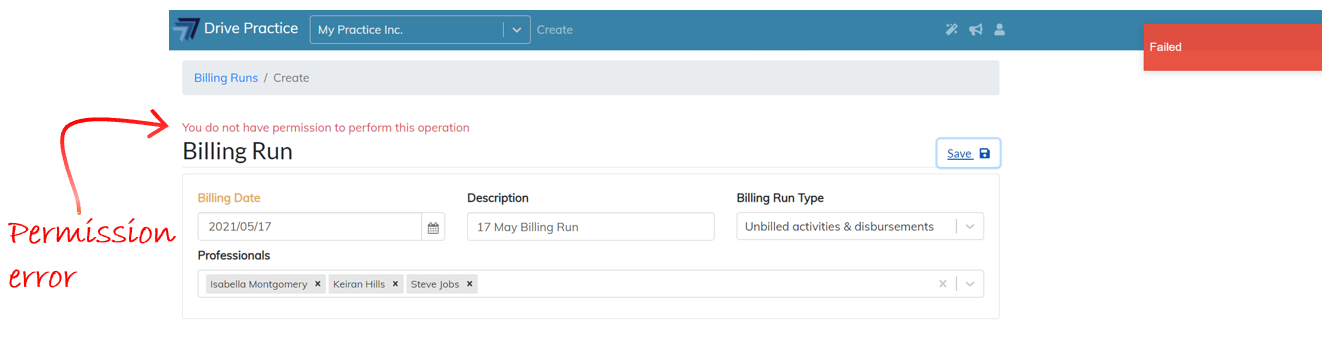
The Billing Run will open once the Header fields have been captured and the Header is saved.
When creating a billing run, the process of generating invoices based on the criteria provided on the Header is run as a background task and an indicator showing that this processing is taking place is displayed as “on” on the Header.
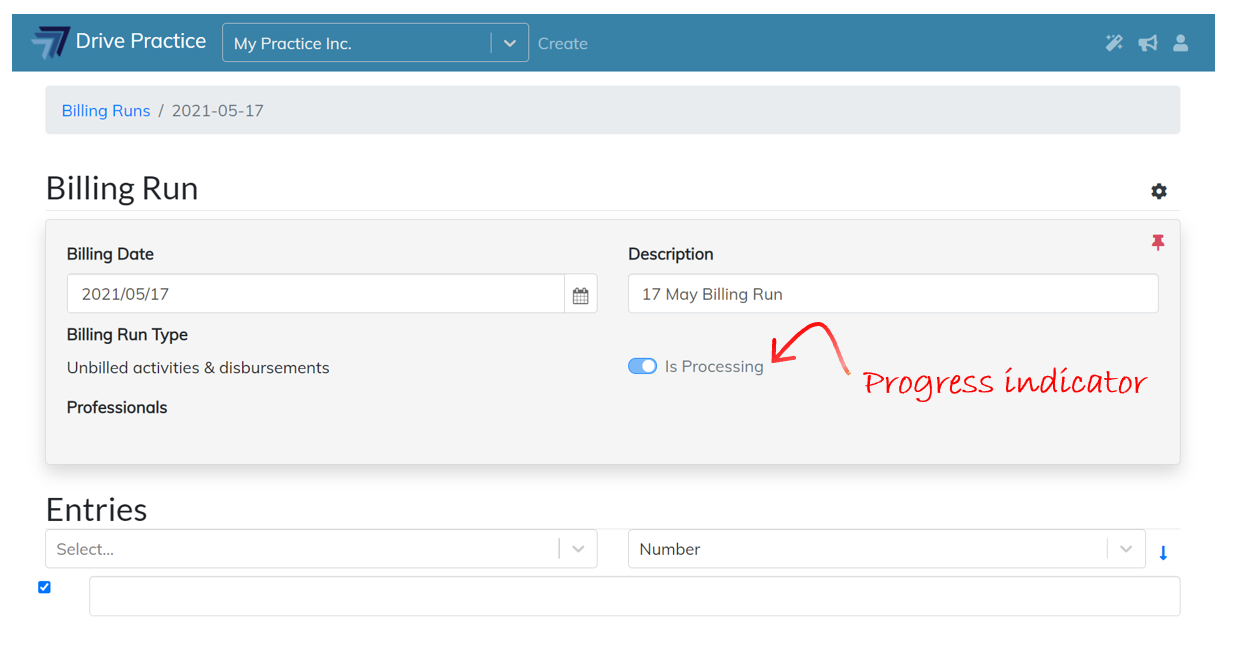
While the “Is processing” toggle is on, you can continue working in other areas of the system and return to the billing run later to work with the billing run. The amount of time taken to generate the entries will depend on the volume of invoices and entries on each invoice that need to be created for the billing run parameters. If you remain on the billing run screen, you will need to refresh the screen periodically to return the updated status of the background process.
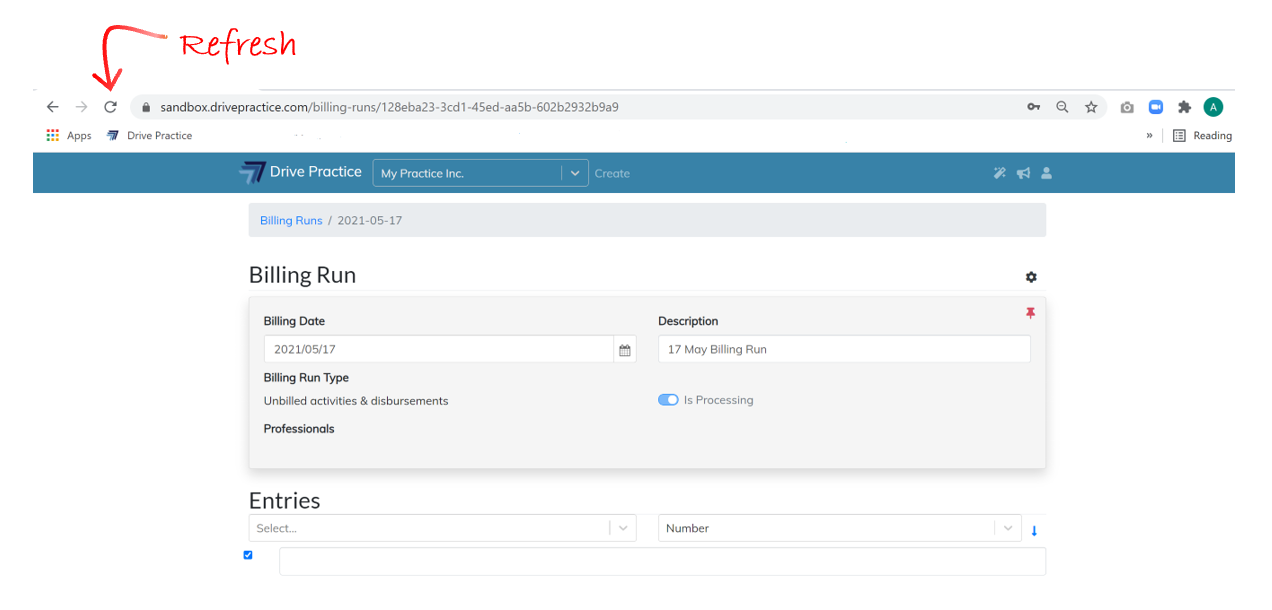
After a refresh, there may be entries in the billing run, however, all the entries that can be generated for the parameters given will not be complete until the “Is Processing” field’s toggle has been set to off by the background task.
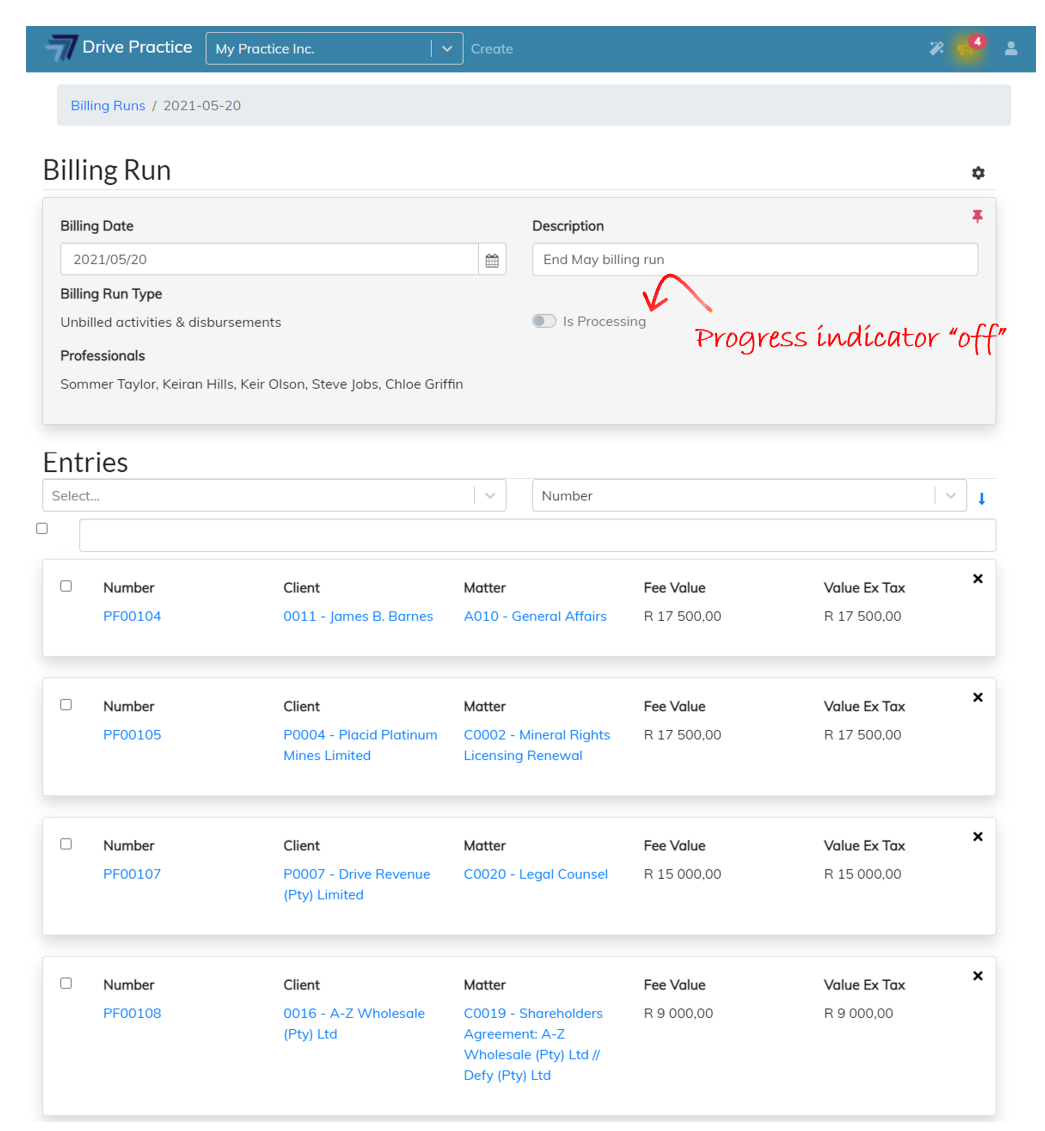
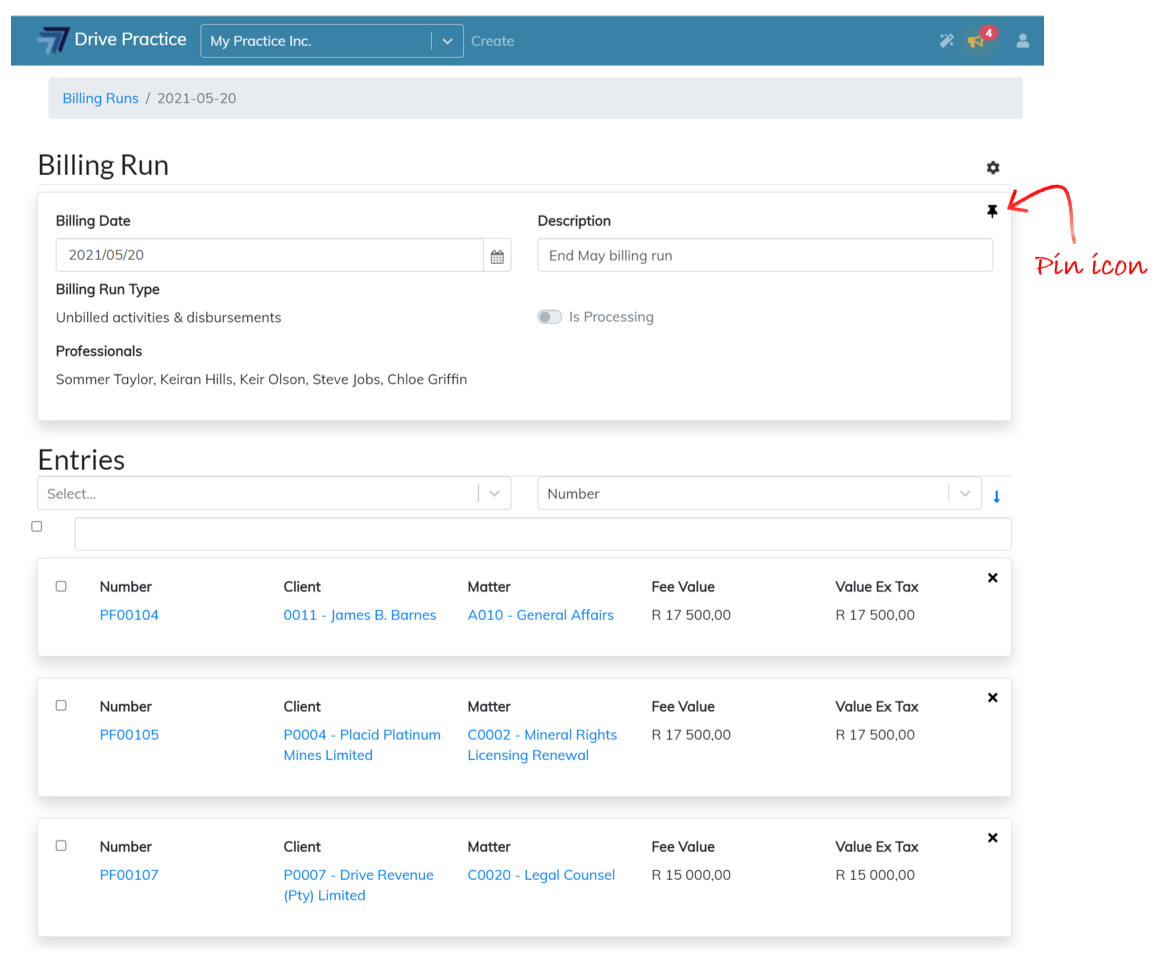
A billing run will always open with the Header pinned, whether it has just been created or is an existing billing run that has been opened. When the Header section is pinned the Pin icon is red and the header is shaded and as you scroll through the Entries on the invoice, the Entries slide under the Header, keeping the Header visible at all times.
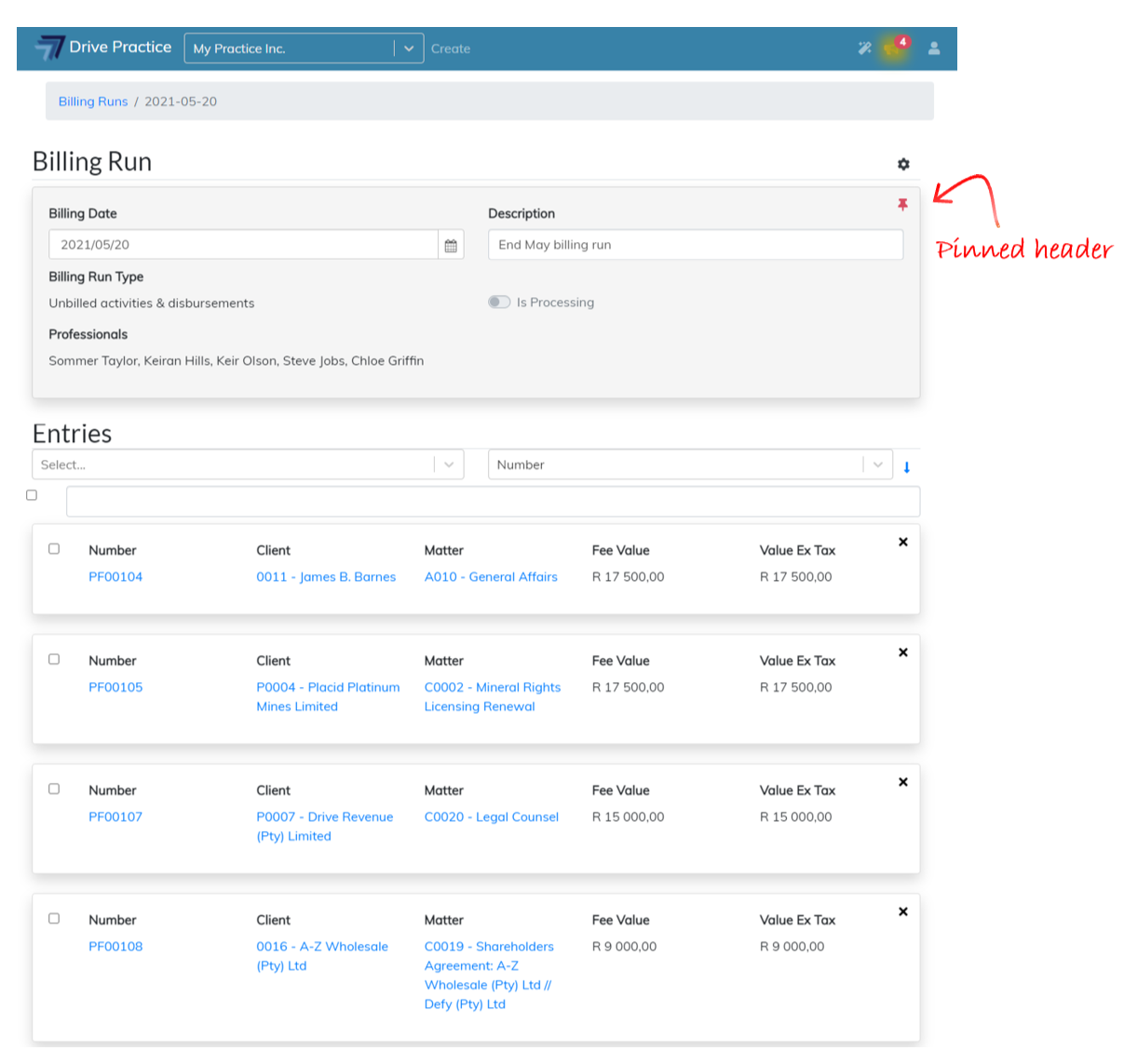
To unpin the Header, click on the Pin icon at the top right corner of the Header. The pin icon will change to black, and the Header will not be shaded. In the unpinned state, as you scroll through the Entries on the billing run, the Header will disappear off the page, until you return to the first entry on the billing run.