Create Recurring Activity
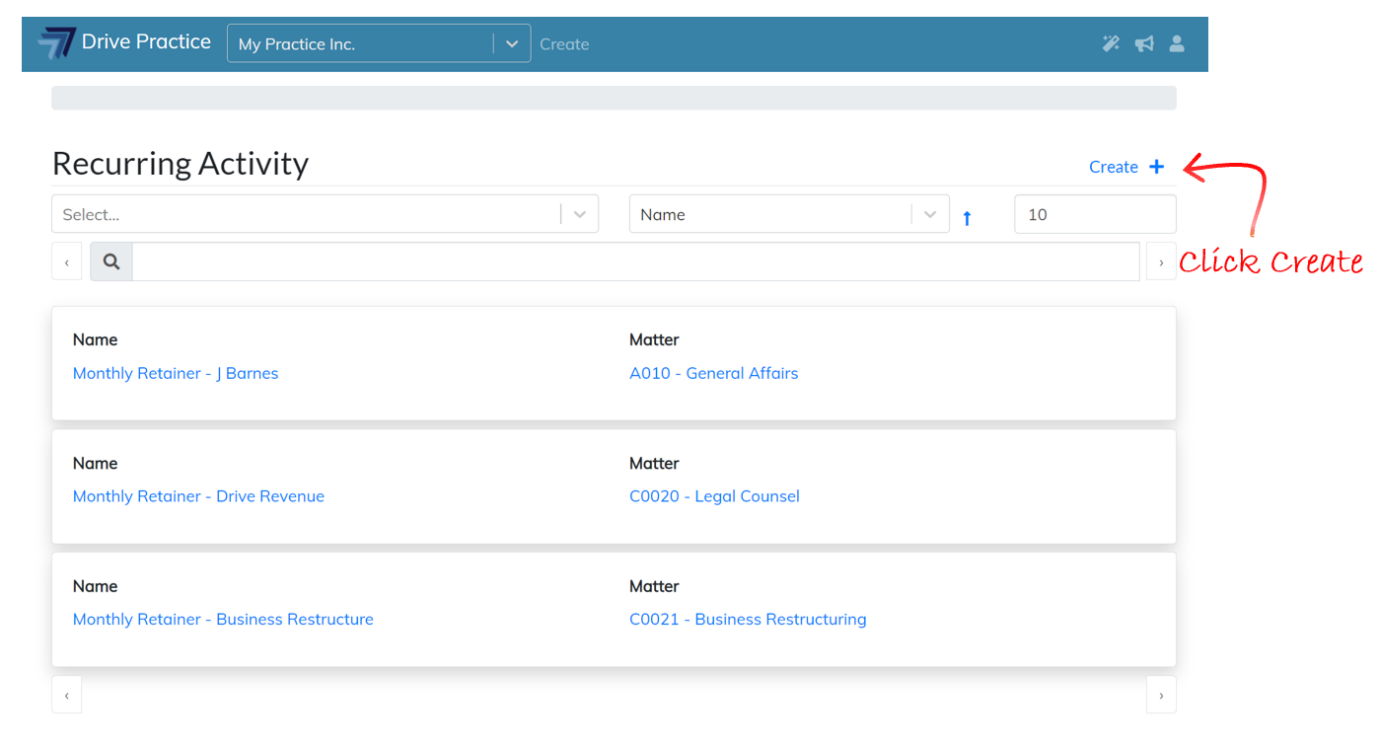
To create a Recurring Activity, navigate to the Recurring Activities list screen as described in the Recurring Activities List Screen section above and click on the Create button.
A new Recurring Activity entry card will open with fields to complete.
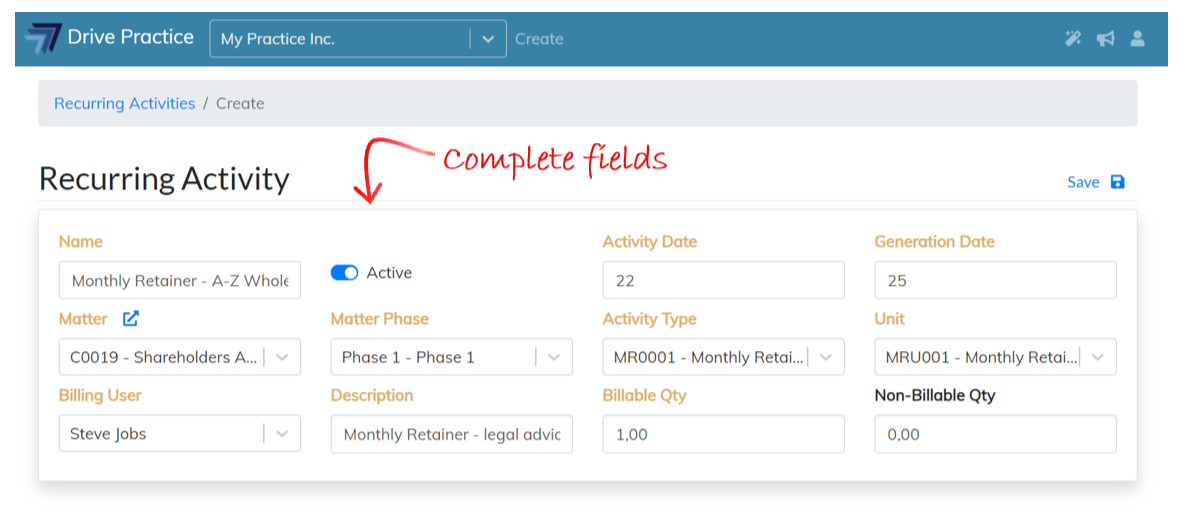
The Recurring Activity fields are described below.
-
Name
Enter a meaningful name for the Recurring Activity.
-
Activity Date
This is the day part of the date that the activity that is automatically created will be assigned. If the Activity Date is set to 1, then the activity that is created will be dated the first of the month.
-
Generation Date
The Generation Date is the day of the month when the activity should be generated.
If the Generation Date is set to 25, then the activity will be generated on the 25th of very month, dated for the next available date for the day specified in the Activity Date field.
For example, if the Generation Date is 25 and the Activity Date is 26, then an unbilled activity will be generated on the matter on the 25th of a month, dated as the 26th of the same month.
And in another example, if the Generation Date is 25 and the Activity Date is 7, the unbilled activity will be generated on the mater on the 25th of a month, dated for the 7th of the following month.
-
Matter
Enter part of either the client number or name, or matter number or name to filter the dropdown list. Click on a matter in the list or use the up and down arrows and tab on a client name to select the matter from the list.
-
Matter Phase
Click on the Matter Phase field to activate the dropdown list of the Matter Phases applicable to the selected matter, and use the up and down arrow keys to navigate to the required phase and press enter to select it, or click on the required phase to select it.
-
Activity Type
Select the Activity Type that the activity is to be allocated to from the list of activity types that have been linked to the matter phase.
-
Unit
Select the Unit from the list of units linked to the activity type.
-
Billing User
Select the Billing User to whom this fee should be allocated.
-
Description
Enter a description for the activity that will be generated.
-
Billable Qty
Enter the quantity of the unit to be billed.
-
Non-billable Qty
If required, enter the quantity of the unit that is to be recorded as non-billable.
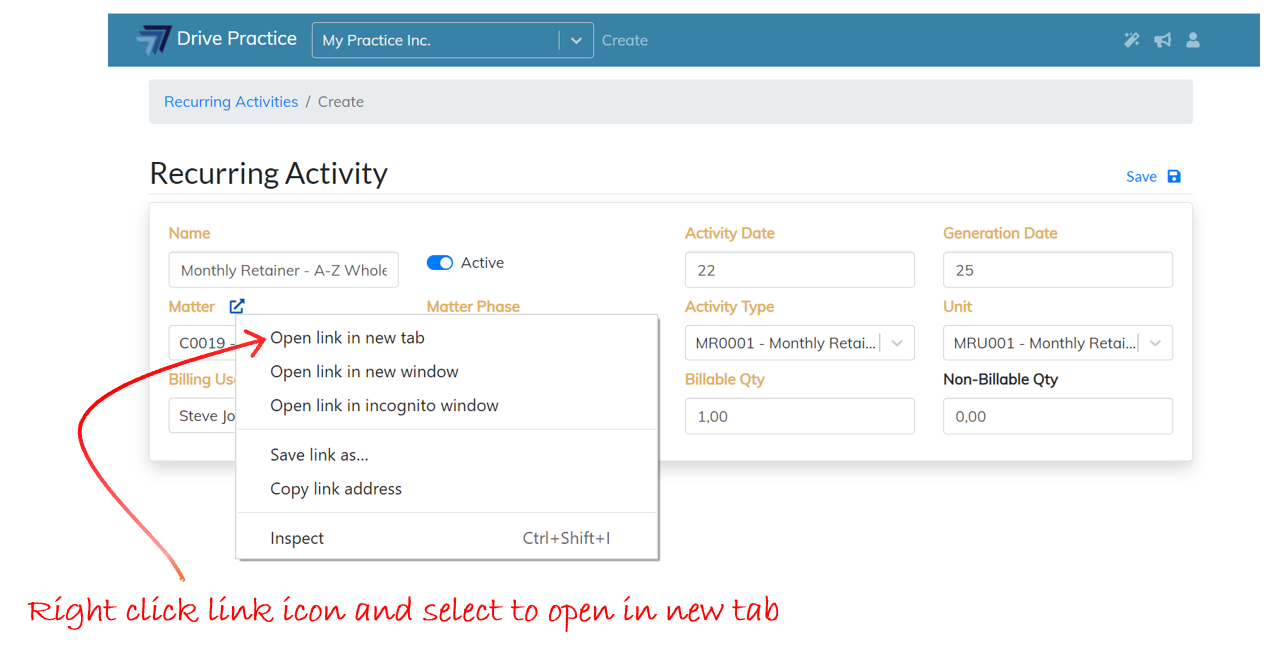
When the Matter field has been allocated, the link icon will appear on the right of the field name.
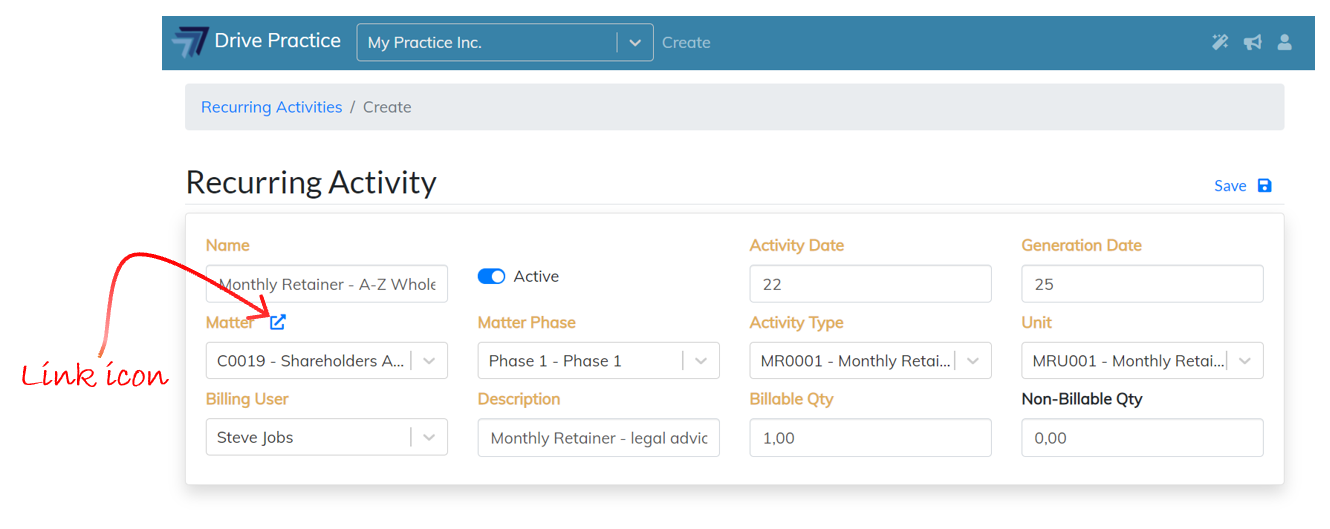
The link icon can be used to navigate to the selected Matter to view details of the selected Matter. Clicking on the link icon will open the item’s record, navigating away from the create Recurring Activity screen. All data entered on the Recurring Activity screen will be lost when navigating back to the create Recurring Activity screen. To not lose the data entered, you can right click on the link icon and choose to open the record in a new tab, or only navigate to the matter once the Recurring Activity is saved.
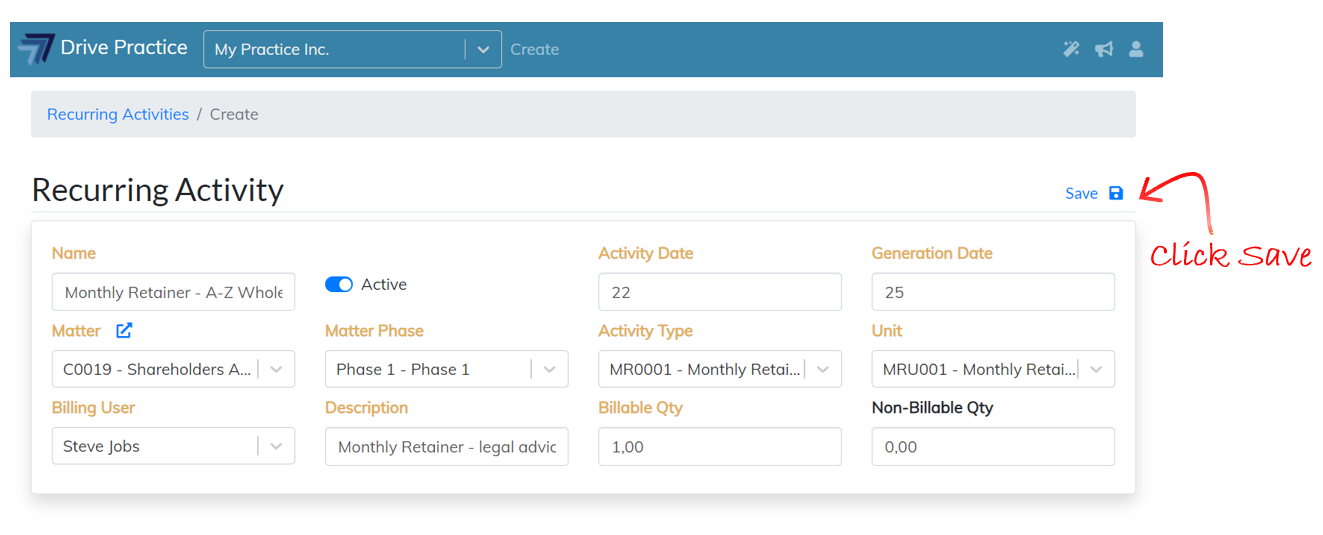
Once all the fields have been completed save and create the Recurring Activity by clicking on the Save icon on the top right-hand side of the Recurring Activity entry or use the Ctrl-Enter shortcut key to save and create the Recurring Activity. A notification that the record has been saved will appear briefly at the top right-hand side of the screen.