Create Bank Import (OFX)
If your banking platform provides for download of bank statements in OFX or OFX2 format, download the statement(s) you require in either of these formats. When saving the downloaded file ensure that the account number is reflected in the file name.
Some banking platforms allow for multiple account statements to be downloaded in one download and may create a zip file that contains individual files for each of the accounts that were selected. As long as the names of the individual files in the zip file identify the bank account number.
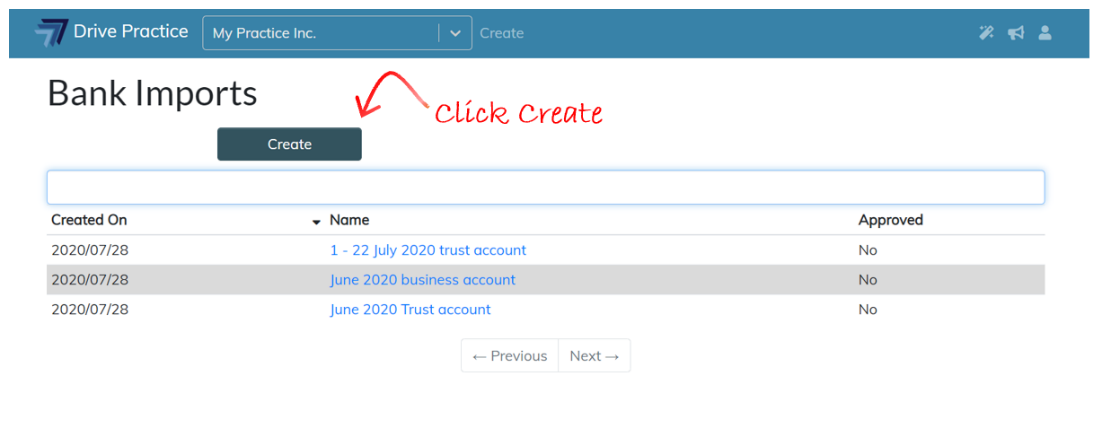
To create a new import, navigate to the Bank Imports list screen and click on the Create button.
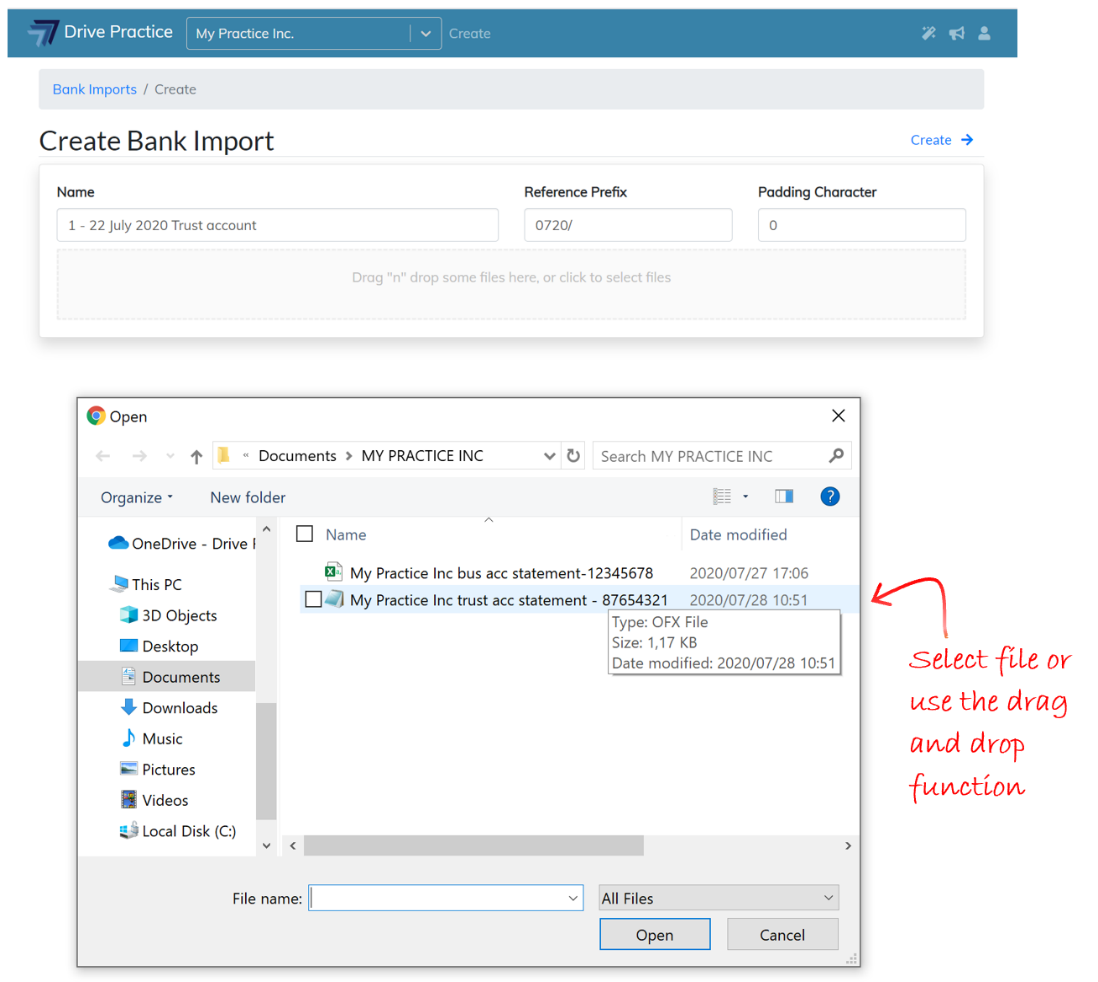
The Create Bank Import page will open with three fields to complete.
-
Name
Enter a name for the import that will provide for easy searching and access after importing, for example “Trust and Bus A/c Jul 2019”.
-
Reference Prefix
Enter a prefix for the reference that will be given to each entry on the bank statement, for example “0719/“. Each entry will also be allocated a number that will be added at the back of the prefix, depending on the number of entries imported for a bank account. For example, if there were more than 10 entries but less than 100 for a bank account in the import, the first entry will be referenced 0719/01. If there are more than 100 but less than 1000, the first entry will be referenced 0719/001.
-
Padding Character
The padding character is used to fill the reference number as described above and defaults to 0 but any character could be used.
To upload bank statements to import, navigate, using Windows Explorer, to the folder where your downloaded files are, click on a file or select multiple files and using your mouse drag them to the content loader on the Create Bank Import web page.
You can also click on the content loader to open Windows Explorer to navigate to and select the downloaded file(s).
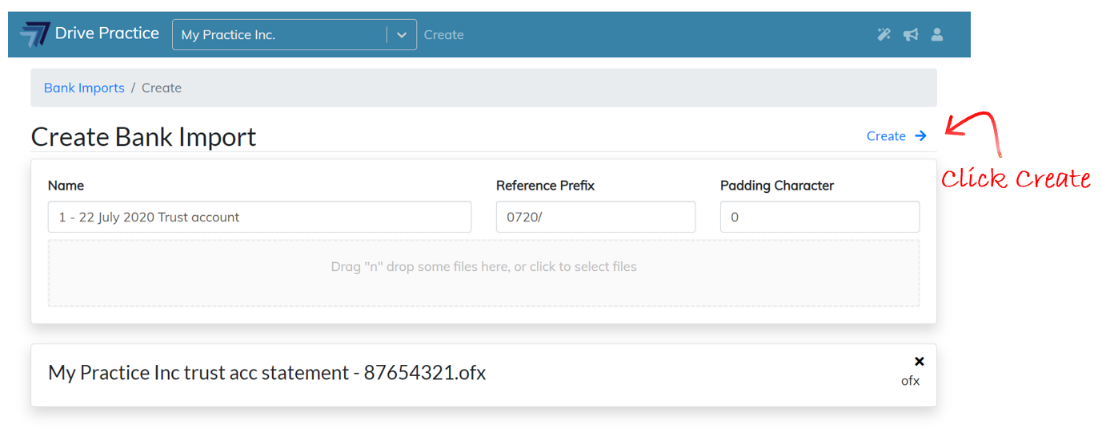
Once the file has been selected, click on the Create button.
 If the import file contains a high number of transactions and it is expected to take a few minutes to import, an import progress bar will appear to indicate how the import is progressing. If the import file contains just a few transactions the import may only take a couple of seconds to display on the screen and no progress bar will be visible.
Should the transactions not appear on the screen immediately after the import is completed, refresh the page by clicking on F5 on the keyboard or click the refresh button next to the URL block at the top of the screen or exit the page and open the import again.