Create Matter Note - Drive Documentation
Create Matter Note | Drive Documentation
Matter Notes Create Matter Note
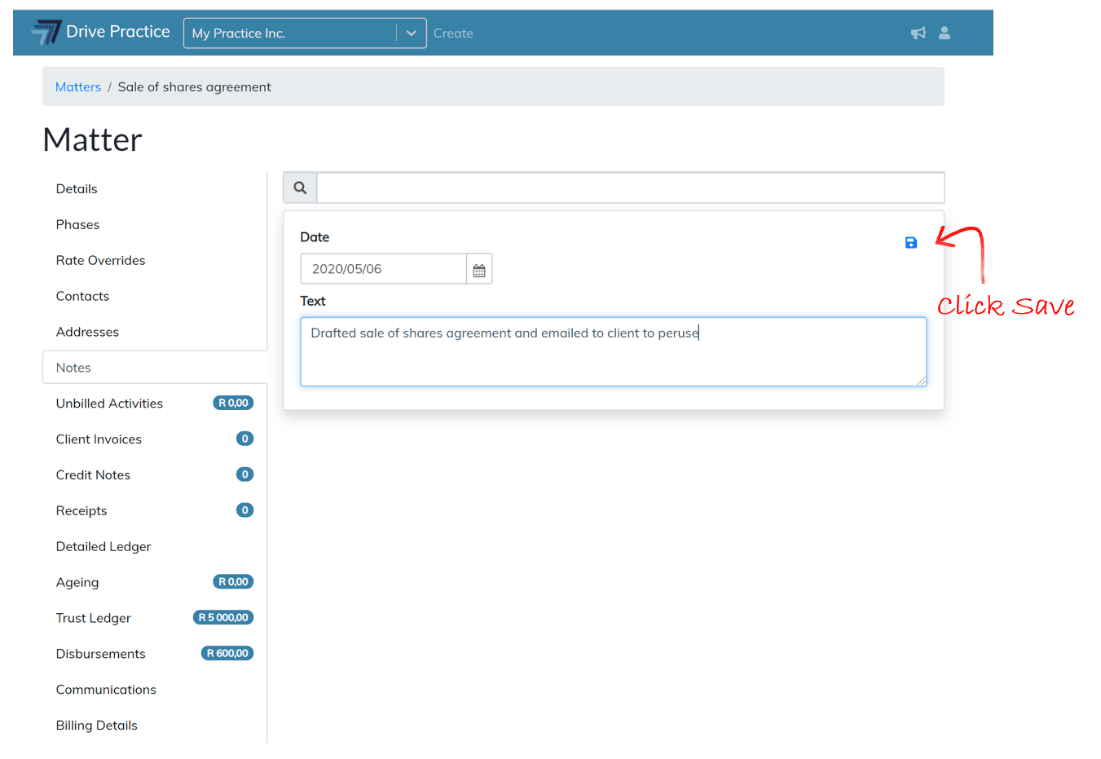
Create Matter Note To create a Matter Note, navigate to the Matter and click on the Notes tab of the Matter. There will be a blank note card at the top of the matter list.
Notes contain two fields which are described below.
Date
This is the date of the note which defaults to the current date. To back date a note to display the correct date of the last action that was taken click on the calendar icon to the right of the date field and select the relevant date.
Text
Add the note text by typing in the text box.
Click on the Save icon or use the shortcut keys Ctrl + Enter to save the note.